Search This Blog

Showing posts with label Subler. Show all posts

Sunday, December 14, 2014

Subtitles - Converting a DVD MKV to IDX SUB files on a Mac

I've done a few posts about subtitles, and I continue to experiment and learn all the time. If you want to read the other posts, then please have a look at:

Subtitles - Convert SUP to SRT

Ripping your DVDs and Blu Rays pt.2: Extract Subtitles for M4V / MP4 / iTunes

They may help answer your questions. This post is specifically about DVD subtitles in an MKV container. DVD subtitles are not an image, they are a text file (Blu Ray subtitles are images and are stored in SUP files).

I will be using the excellent Swedish drama 'Crimes of Passion' to demonstrate.

When you look in Handbrake you will see they appear as VOBSUB (text files):


What Handbrake does is to then apply the worst font in the world to it to create a horrible looking output:

"Good grief," thought Puck, "I can't be doing with this subtitle font..."

Ahhhh! It's horrible! It looks very jagged even on a small screen, but on a big TV it's awful! Also, if you burn it in, you can't ever turn it off. You never know, you might learn Swedish sometime... Or have Swedish friends over to watch it whilst you are cleaning the car....

Anyway, luckily, the font that Apple devices (iPad, iTunes, Apple TV) use are much nicer and it would be great to have those instead. We just need the subtitles in a file inside the MP4 container

"Well don't burn it in - just rip the subtitles as a file and turn them on in Quicktime or something" I hear you cry! Well, yes, you could try that, but Apple devices don't understand the subtitle output. Don't know why... Subler sees it just fine, but it causes Quicktime to error.

Here's how it's done (as ever, using my Mac - PC/Linux users will have to try and find equivalent software).

For this article, I used:


Handbrake

Rip the MKV to MP4 using Handbrake, but don't include the subtitles! Don't know how? Read this:

Ripping your DVDs and Blu Rays for your Apple Mac / iPod / iPhone / iPad etc

MKVToolNix

You will need a handy little tool called MKVToolNix which can be downloaded for PC, Mac and Linux. Once installed, open the program GUI and find the MKV file you are wanting to rip and "add" it. Now you want to look for the subtitle track you are after and make a note of the ID number - you'll need it in a minute:


Now you need to open Terminal, because you are going to use the non-GUI utility mkvextract, that comes bundled with MKVToolNix, to get the subtitles extracted. You will need to type the following:

/Applications/Mkvtoolnix.app/Contents/MacOS/mkvextract tracks /<MKVpath>/<MKVTitle>.mkv  <TrackNo>:/<OutputPath>/<OutputFile>.sup

<MKVpath> = the directory where your MKV is stored
<MKVTitle> = the name of the MKV
<TrackNo> = The subtitle track number you made a note of earlier
<OutputPath> = the directory where you want the subtitles
<OutputFile> = the output file name

One you hit enter, the subtitles will be extracted:


And once the progress = 100% your subtitle file is ready and waiting!

Now the program is clever - it knows these aren't images so it changes the output file to be IDX and SUB. The IDX file is the index file and the SUB file is where all the subtitle text is held. None of that matters really, it's now a text file, and as such can be understood by a wider variety of programs - including Apple products.

Subler

Good old Subler - where would I be without it - it's a brilliant utility for the Mac.

You just need to add the subtitle track and save it - I've detailed how to do that in this blog post towards the bottom of the article.

You are adding the IDX file this time, rather than the SRT, but it's the same process as before apart from that.

FINISHED!

And so here we are - the finished movie:

"At last", thought Puck, "a subtitle font I can adore..."

These subtitles are now ready to be used on your iDevices and you can set options on devices like Apple TV to make them bigger or smaller or change the font. Huzzah!


Sunday, March 2, 2014

Subtitles - Convert SUP to SRT

Ah subtitles... When ripping Blu Rays from an MKV to M4V (MP4) they used to be quite a pain in the backside (see this previous post for details!). But if you are happy with 'burning in' subtitles (i.e. having them form part of the picture) then Handbrake v 0.9.9 will happily provide this service for you out of the box.


As you can seem you just simply go to the 'Subtitles' tab and choose the subs you want and lo and behold the Bitmap image of the subtitles will adorn your movie:


It even retains the font and colouring because these are images - not text.

Now this is fine for 'Forced Subtitles' (where the characters speak gibberish - in the case above taken from "Thor - The Dark World" - 'Dark Elven') but when you want to have the ability to turn the subtitles on and off, this won't work. These subs are burnt onto the picture. If you want to have the ability to switch languages, or something like that, the subtitles need to be stored in a file - usually a text file.

A media player like VLC does understand the subtitle files that are images natively and will happily let you turn them on and off through a menu option. iTunes or QuickTime does not support image subtitle files - only text. So how to convert the bitmap image to a text file? Well, as ever, it's a bit complex....

Fear not - I shall attempt to steer you through the pitfalls. You will need the following software:


You will need a nice MKV version of your movie with the subtitle track that you want included (no idea what I mean by that, then please refer to a previous blog post of mine on how to do this).

This walkthrough is for a Mac, with a bit of Windows PC software thrown in. I'm sure equivalent software are available for both platforms. The reason I use Subtitle Edit is a friend recommended it and I haven't found a Mac equivalent.

Let's begin...

MKVTools

(1) Open MKVTools and open your MKV file.

(2) Navigate to the "Edit" Tab and choose the subtitle track you want to export (If you aren't sure, open the MKV is something like VLC Player and fiddle with turning on the different subtitle tracks until you find the one you want, then go back into MKVTools).

(3) Check the "Extract Selected Tracks" box on the right and click "OK". Another window will open and you will see the progress of the file extraction. It will store the subsequent SUP file in the same folder as your MKV file.

UPDATE - 14th December 2014 - An alternative to MKVTools

I haven't been using MKVTools recently. I've found a better way using MKVToolNix. I've detailed how to use this in a seperate blog post (which deals with subtitles from DVDs, but can also be used to get the SUP file from Blu Rays using exactly the same method):

Subtitles - Converting a DVD MKV to IDX SUB files on a Mac

Subtitle Edit

Switching to my Windows PC now, I take my extracted file and load up Subtitle Edit

(1) Open the software and select the "Open" menu option then choose your SUP file. It will open into the "Import/OCR" screen like the image below:


(2) The software will now attempt to OCR the subtitle images. In plain english, it will scan the subtitle images and translate what it reads into plain text. No OCR is perfect, it will make mistakes (especially in a fantasy tale like Thor! - "Send in the Kursed" sugggested as being changed to "Send in the Nursed"!) but we can correct those as we go along, ignore them or sort them out later...


(3) And so you end up with an editable list where you can go and make corrections where necessary. Click into the Text box and correct away. If you want to compare it to the source images, then open up the SUP file in a tool like BDSup2Sub and browse through the file.


Now I've only scratched the surface with this program. You can look at the Subs over the video, correct timings and do all sorts of funky things. But if you've ripped the subtitles from the same MKV as you ripped the movie, then there's no need. You simple need to focus on getting the spellings and words correct.

Obviously, in my example, there aren't many lines of text. I appreciate in a fully subtitled movie there is a lot of work potentially - but that's just the way it is!

One you have finished your corrections, save your file as a SubRip (.srt) format and back to the Mac you go...

Subler

If you have read some of my other blog posts, you will know I like Subler and it makes this last step super easy. 

(1) Open up the movie (the MP4 or M4V you ripped from the MKV) and click on the + button in the top left-hand corner:


(2) Locate the SRT file you saved earlier and click "Open". You will see the screen below which you just click "Add" on:


(3) Save your work. This also assigns the subtitle a Track ID, which you will need

(4) Now click on the Subtitle track and set the following options:

Language: English (or whatever language you are using)
Alternate Group: None
Forced: All Samples Are Forced
Forced Track: Choose your subtitle track


(5) Now Save again - and you are done!

THE FINISHED MOVIE

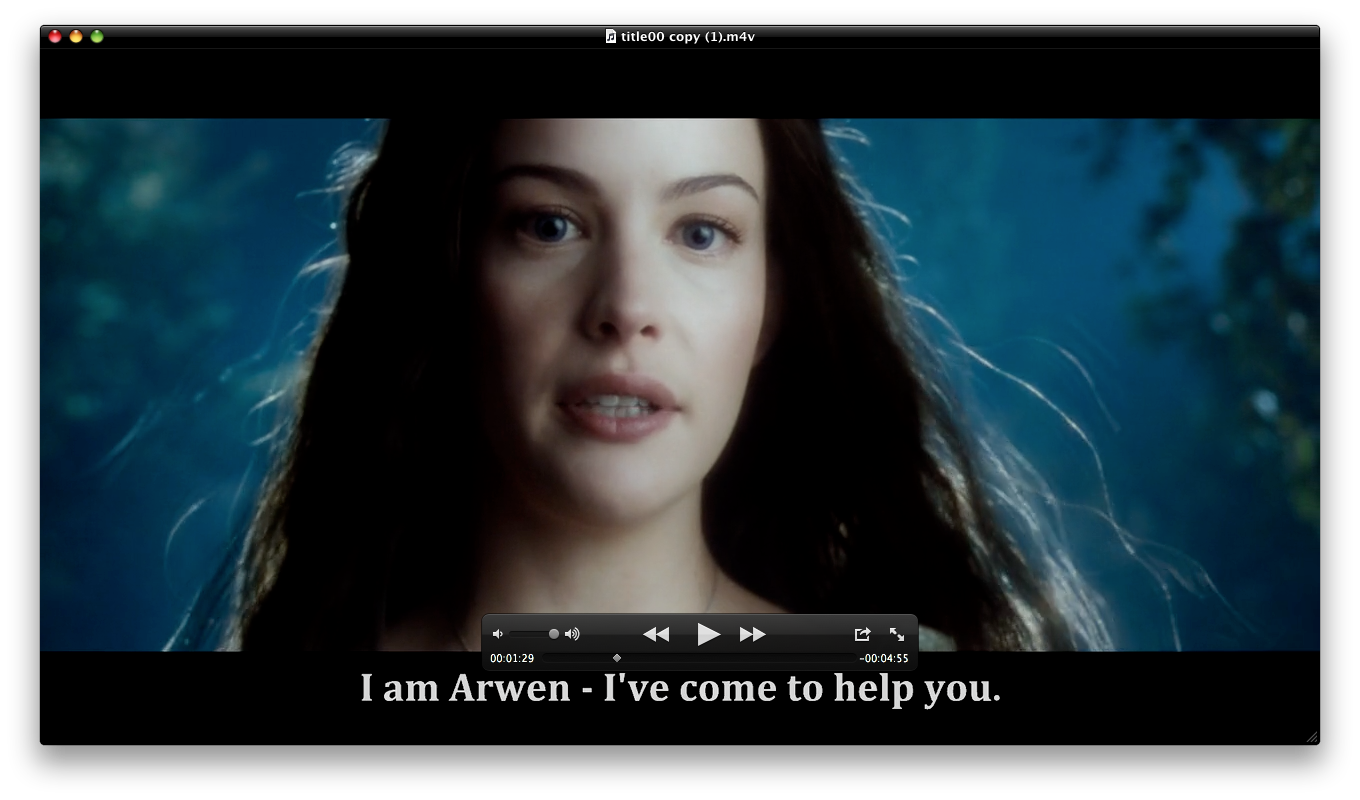
Here's a screen shot using QuickTime player:


The text subtitles are at the bottom. QuickTime doesn't support the forcing of the subtitles. iTunes does, and so your subs should display automatically - but if they don't just choose them in the menu option manually.

SUMMARY

If it's alien speak you're after, or you will always want the subtitles on (such as in a foreign language film) then just burn them straight onto the image using Handbrake. Easy peasy and it retains the nice fonts and colours.

If you use Quick Time or iTunes, and want to turn the Subs on and off, then it's a bit of a painful process, but it works just fine.

As ever - any feedback - please leave me a comment below...

Friday, August 26, 2011

Ripping your DVDs and Blu Rays pt.2: Extract Subtitles for M4V / MP4 / iTunes

UPDATE March 2014

Handbrake (from version 0.9.9) will now burn subtitles direct from MKV containers ripped from Blu-Rays as the screen shot below shows:


But I've kept this post on, in case you are using an older version of Handbrake.

Also, for the record, BDSuptoSub can be run on OSX - but you need to install the OSX Java engine
------------------------------------------

In a previous post, I covered the method I use to rip DVDs and Blu Rays for use in iTunes and iOS products (check out the article here if you missed it).

To recap the tools I have:

I have been trying for sometime to find a way, using my Mac, of carrying subtitles over from Blu Ray discs onto these ripped M4V files.

(BTW, Windows users, the following software all comes with Windows versions - so you should be fine to follow this summary described below.)

Often films contain "forced subtitles". These are for when a film in English language has dialogue spoken in a another language, and forced subtitles translate just these small sections rather than the whole film.

They are called "forced" because they play back as default on DVD and Blu Ray players. Trouble is getting them to do the same on your ripped copies.

As an example, the Lord Of The Rings trilogy of films have sections spoken  in Elvish for which there are subtitles provided. This has been the catalyst for this investigation, as I really wanted those movies for my iPad.

The method described below also works for full subtitle tracks  - especially useful for me for the Millenium trilogy of films where I like to have the original Swedish soundtrack, and have English subtitles.

Obviously, if you are hard of hearing, this is going to be of great interest too for all your Blu Ray ripping.

DVD

DVD is simple, and can easily be done in Handbrake. As you can see in the example below, this DVD of 101 Dalmatians has subtitle tracks recognised by Handbrake.


All you do is

  • Select the right language
  • Check the "Burned In" box
  • Check the "Forced Only" if you want just forced subtitles, or leave it blank if you want all the dialogue subtitled.
That's it.

Blu Ray

Blu Ray is MUCH harder. This is because the Blu Ray format of subtitles are bitmaps, and as such, as not supported by many editing tools - Handbrake included. To witness The Lord Of The Rings in true HD glory and understand that Elvish dialogue, we are going to need to get some more software:
As an aside, this method may be long-winded, and there could be a simpler way to do it - I'm not perfect! So if there is, let me know! It took a lot of research through various forums....

OK, so we will assume you have a nice MKV file of your Blu Ray with all the audio and subtitle options on it that you need.

MKVTools

(1) Open MKVTools and open your MKV file.

(2) Navigate to the "Edit" Tab and choose the subtitle track you want to export (I know the Elvish to English translation for this Lord Of The Rings rip is Track 2). If you aren't sure, open the MKV is something like VLC Player and fiddle with turning on the different subtitle tracks until you find the one you want, then go back into MKVTools.

(3) Check the "Extract Selected Tracks" box on the right and click "OK". Another window will open and you will see the progress of the file extraction. It will store the subsequent SUP file in the same folder as you MKV file.

BDSupToSub

You will now need a Windows machine, or an emulator on your Mac running the BDSupToSub software.

I have searched high and low for a Mac native equivalent and draw a blank. Again, if you find one, let me know.

(1) Open BDSupToSub and load in your SUP file.

(2) Just leave the Conversion options as they are (the resolution should be 1920x1280 as this is the Blu Ray default).

(3) You will get a nice screen showing you the first subtitle line found. You don't need to do anything with this, just go into File / Save/Export and click OK (changing the language marker if needed).

You will have two files; a SUB file and a IDX file.

MKVToolNix

Back to the Mac environment now, and you need to open up the MKVToolNix tool.

(1) Click the "add" button to add your original MKV file and your new IDX file (make sure the SUB file is in the same folder or it will throw an error).

(2) Scroll down the "Tracks, chapters and tags" box until you see the VobSub entry at the bottom. This is your subtitle track. Check that box and uncheck all the other subtitles.

(3) Name the new MKV "Output filename" and hit the "Start muxing" button and wait patiently....

Handbrake

Now you have your new MKV, open it in Handbrake and check the subtitles tab - you should now see a VOBSUB file that Handbrake understands. 


Set your options and off you go! Your output should look like this:

And there you have it.

Not too complex, just a lot of faffing about with different bits of software.

I'm sure paid for software does this out of the box. Actually, I'm not sure! It might not!

Thursday, May 26, 2011

HD-SD Tag: Having HD and SD movies in iTunes

When ripping movies, it can be a compromise about whether to go for a suitable file size and resolution for your iPhone or iPad versus being able to watch something in reasonable quality on your Mac or Apple TV box.

Well, now you can have your cake and eat it! If you download an HD movie in iTunes, it also comes with a SD version for your portable device. Well, when you rip your own, you can set them up in iTunes to mirror that functionality! Cool eh! Here's how:

BTW - big shout out to XeonSSX and his tutorial video on YouTube as well as trockenshaf who contributed a useful comment on that posting. This article is based on those ideas

To start, you will need;
You will also need two copies of your movie of TV programme, one in a suitable HD format and one in the SD format you want for your portable device (my previous article has some help in getting to that stage).

(1) Open Subler. From the File > Open menu choose the two versions of the movie or TV program and open them up. In each version go to File / Import / Search Metadata Online... and find the movie information you are after

You will now have two Subler windows looking something like this:


(3) Set the windows side by side so you can see them both.

(4) In the HD window, select the menu icon from the bottom left hand corner of the screen
Then choose the "contentID" category
Once the contentID is displayed in Subler's main window, type in the number "287750828" (without the quote marks).

<UPDATE 17/02/2014 - with the metadata coming from iTunes, it should automatically set the ContentID. If not, then you can follow the procedure above and choose a random 8 digit number to assign it.>

(5) Repeat this process in the SD window.

(6) Go back to the HD window, and open "Other Settings". Make sure you set the "Media Kind" correctly and tick the "HD Video" box

(7) Repeat in the SD window, but don't tick the "HD Video" box

<UPDATE 17/02/2014 - the new version of Subler is a drop down box with either 720p or 1080p - but it's the same principle. Just set it to the correct HD setting, rather than ticking a box.>

(8) Save the changes File > Save

(9) Locate the files in Finder and drag them into your iTunes window (I like to have the view set in the section I am adding the files to so I can see what's going on)

<UPDATE 17/02/2014 - step (9) doesn't always work. You randomly get either the HD or SD version, but not both. This seems to be an iTunes 11 issue. Here's how to get round it:

(a) Copy the SD version over to iTunes (using the Import menu or dragging and dropping).
(b) Once this has copied over hold down the Alt / Option key and drag over the HD version. After a few seconds, the SD-HD icon will appear
(c) Right-click the movie and click on 'Consolidate files...'. This will then copy over the HD version of the movie into your iTunes folder.

Don't ask why this happens and why this fix works, all I know is it does!.>


(10) The files will be copied to iTunes and you will see the HD-SD tag displayed


<UPDATE 17/02/2014 - in iTunes 11 you can't see the HD-SD tag unless you look at the List view. This is super-annoying, but another 'improvement' Apple have made!

>

The HD copy will play on your Mac and Apple TV, the SD on your portable device!

I'm afraid I don't know any alternatives to Subler for Windows and Linux users. The important thing is to find software that alters that "contentID" tag.

If anyone finds something suitable, please let me know!